
Tabby works on the Shopify platform for all supported countries. Currency conversion may apply for multi-currency stores, check Multi-Currency Processing and Currency Conversion below.
Installation Steps
No time to read or have questions on any of the steps? Watch video guide onHow to set up Tabby on Shopify:
1
Register with Tabby
Register with Tabby (KSA: merchant.tabby.sa) and fill all required business details to collect Tabby Live API Keys.
2
Install the Tabby Payment App
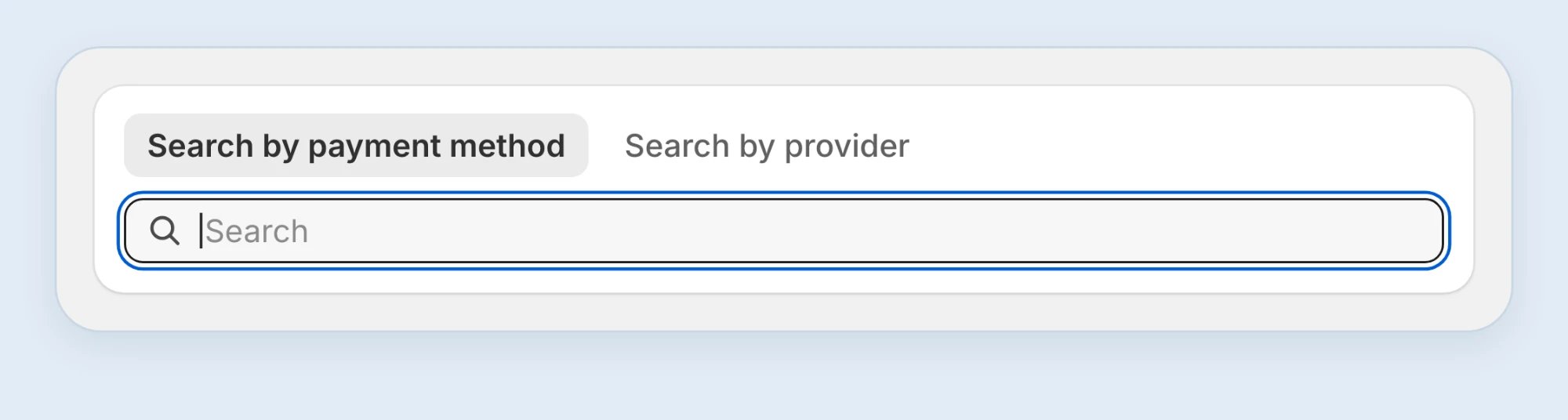
To install Tabby Payment App, click here. After the installation Shopify opens the Tabby payment method page.
3
Add your API keys
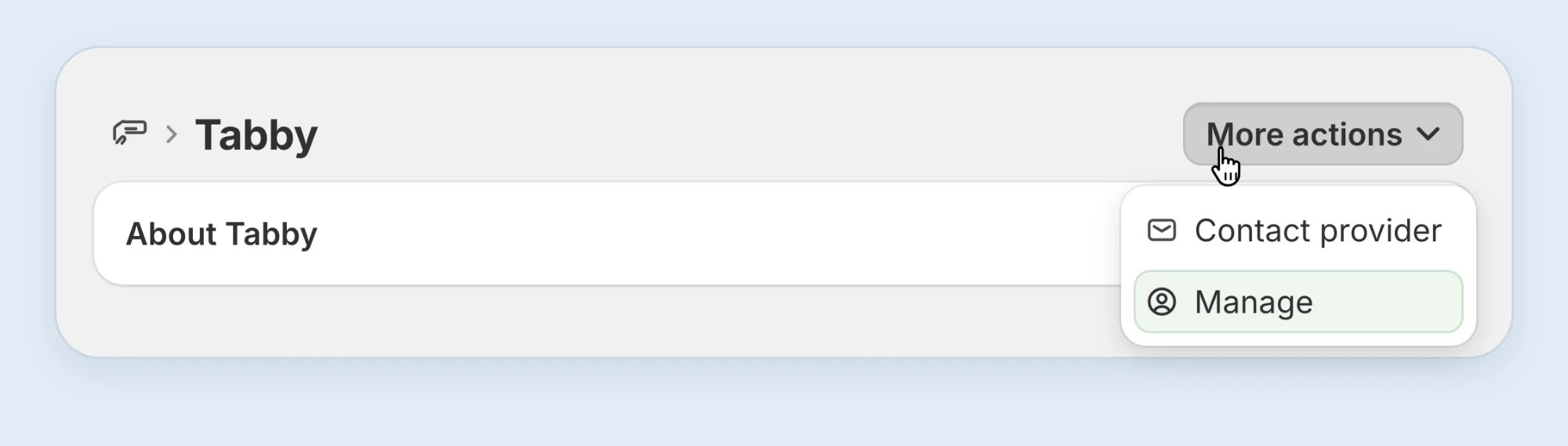
On the Tabby payment method page click More actions → Manage. Copy the Live Public and Secret keys from the Merchant Dashboard (KSA: merchant.tabby.sa) and paste them in the necessary fields. Leave the Webhook Verification Code empty, you will get it in Step 5. Click Save.Keep this page open — you come back to it in Step 5.
If you closed the Tabby pageOpen Settings → Payments and in Additional payment providers click Add.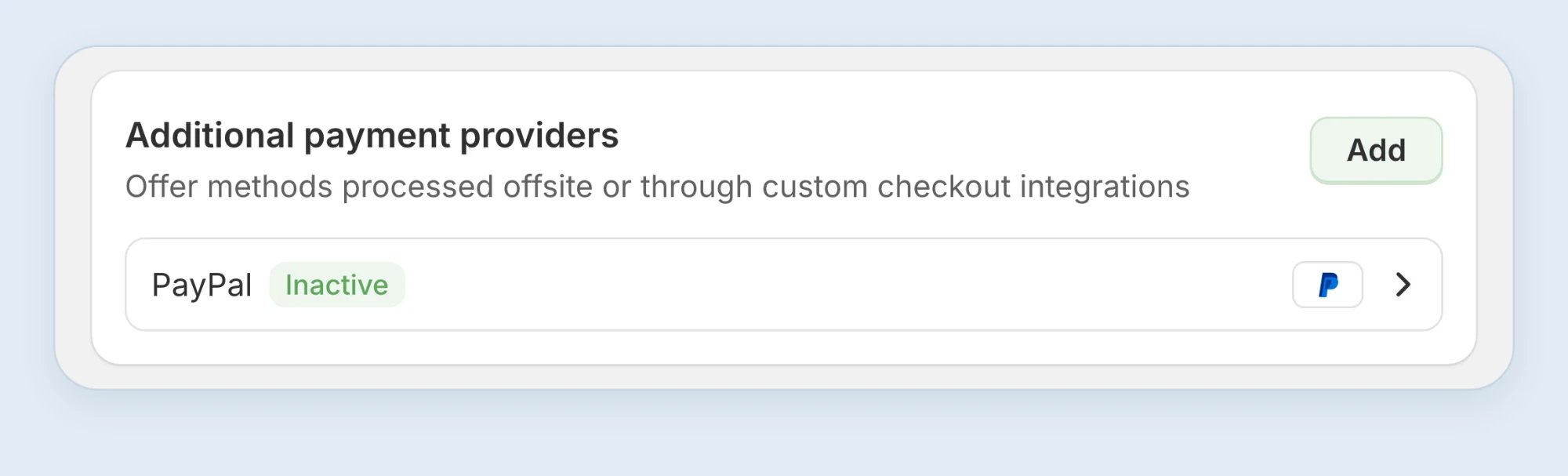
4
Set up Shopify Webhooks
Tabby requires Shopify Webhooks to update the order number, fetch the phone number and order lines from Shopify, and read product details such as category and brand from your catalogue.Open Settings → Notifications → Webhooks and click Create webhook. Add 6 webhooks:
Use only the latest API version on every webhook.
5
Add the Webhook Verification Code
Copy the Webhook Verification Code which is generated after the first Webhook creation.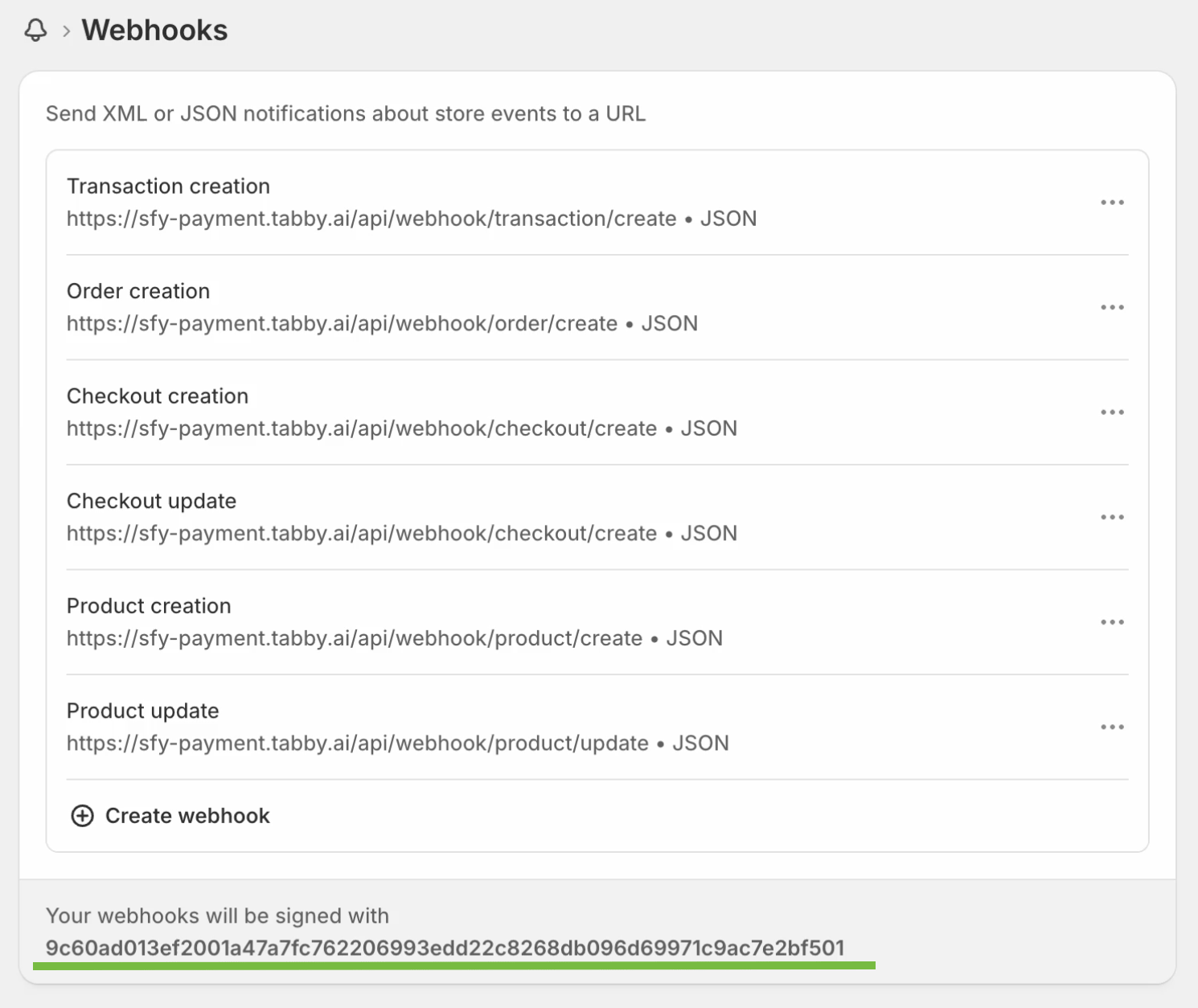
Webhook Verification Code
6
Activate Tabby as a payment method
The API keys and the Webhook Verification Code are saved now, so Tabby can be switched on. On the Tabby settings page click Back to Settings to return to the Tabby payment method page and click Activate.
7
Check the required settings
-
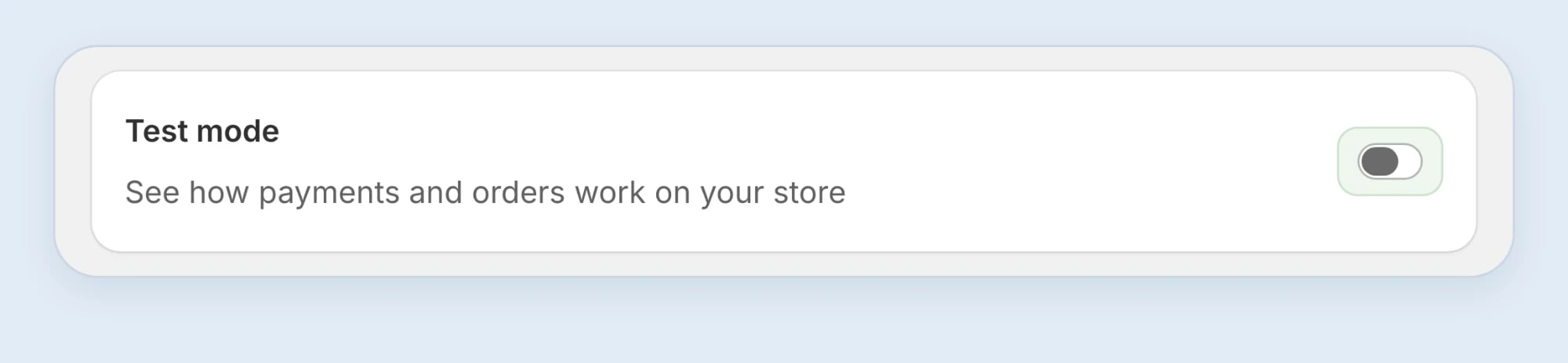
Make sure Test mode is off. The toggle sits on the Tabby payment method page — Settings → Payments → Additional payment providers → Tabby. Tabby does NOT pay out for test / playground orders ever, even if a live customer places a real order while Test mode was on.
-
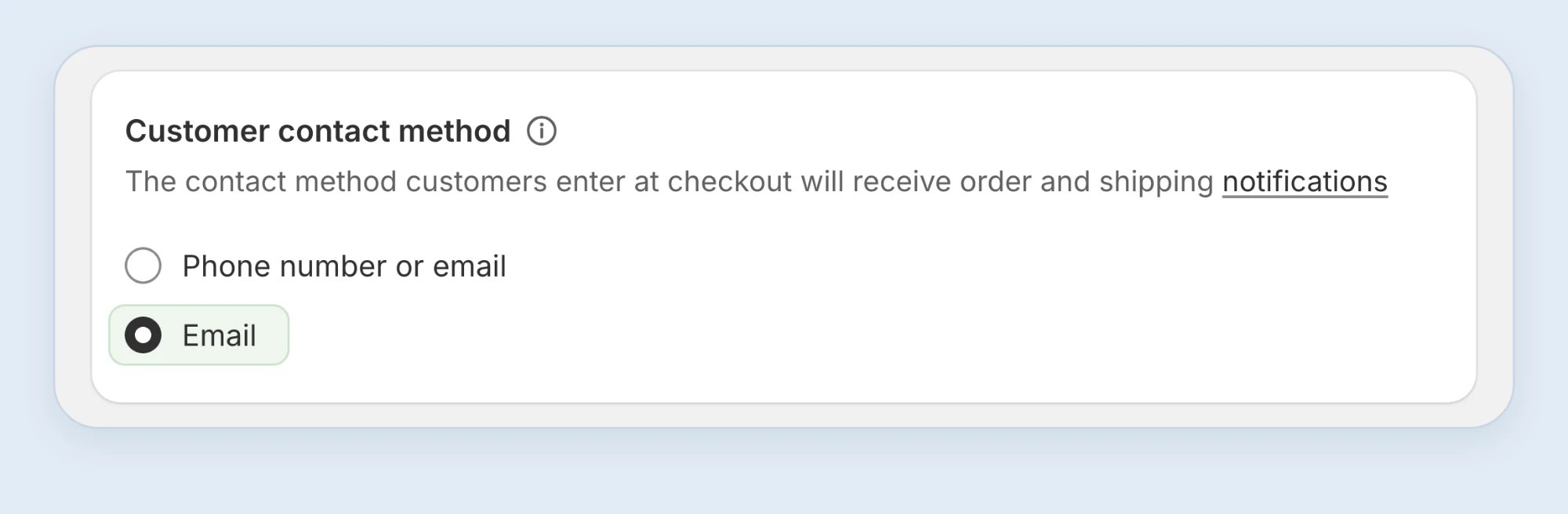
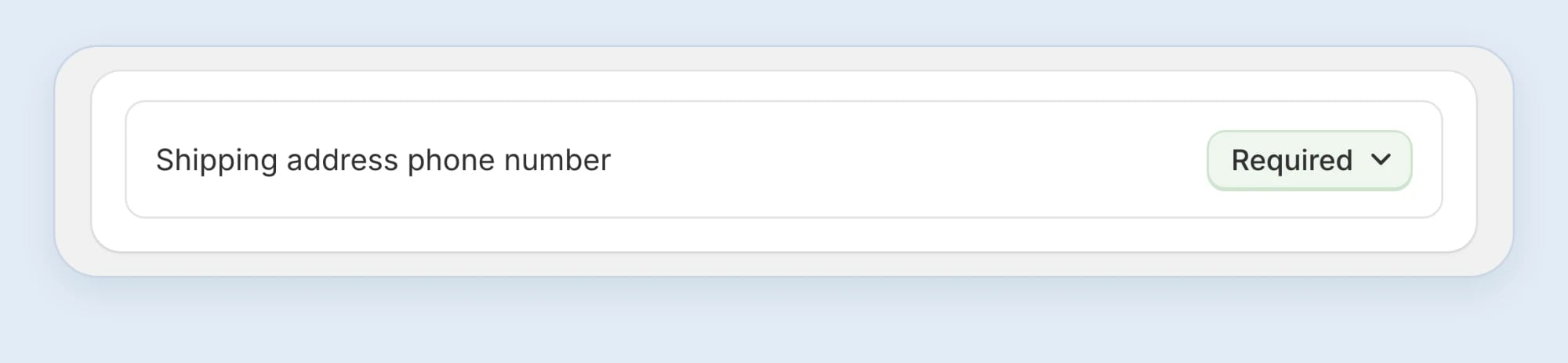
Email and phone number are required for Tabby payment method. Please enable the following settings in your admin panel:
Webhook API Version Update
Here Webhook Update Demonstration can be reviewed: Shopify Webhooks are created for the particular API version. Shopify releases several versions per year, so it means your initial API version settings will inevitably expire. Tabby makes the necessary changes to support the latest updated API versions, but this also requires a manual action from the partner’s end. You need to go to Settings -> Notifications -> Webhooks and choose the latest API version from the dropdown of a particular Tabby Webhook.Add Tabby Snippets
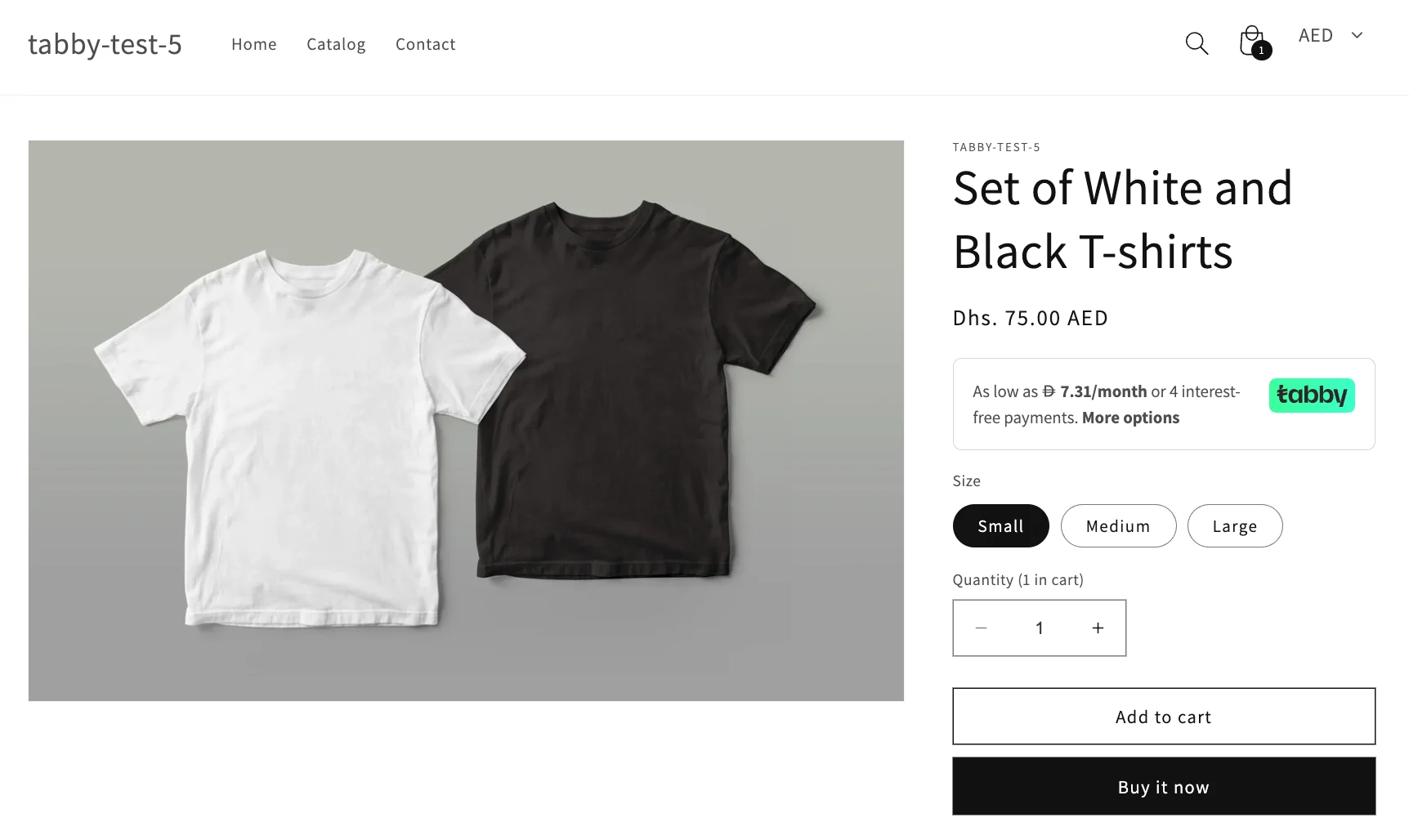
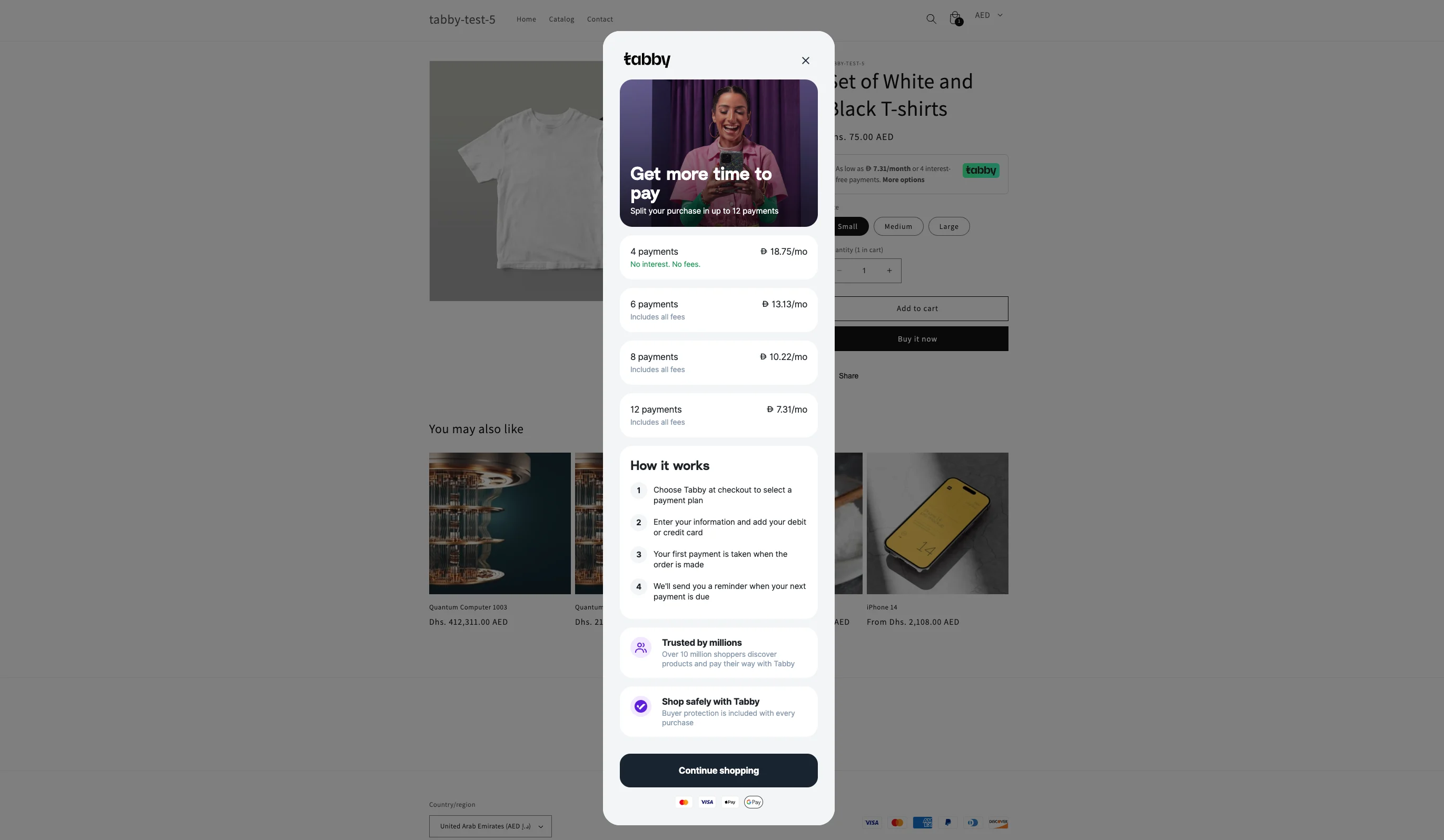
Tabby is live now!
Tabby orders are captured automatically. Refunds can be initiated from Shopify admin panel and will reflect on Tabby Merchant Dashboard, Customer Portal and Settlements.Limitations and Known Constraints
Language Settings
The locale for Tabby Hosted Payment Page and Payment Method will be set based on the store’s language, Tabby supports English and Arabic. If the locale is not supported, English is used by default. You can configure your store’s language in your Shopify admin under Settings -> Languages.Order Number Update
When an order is placed in Shopify, a payment id is set in the Shopify order timeline information under the “payment was processed on tabby.” section, within the “Information from the gateway” subsection. This payment id is set in the Tabby order’s “reference_id” (order number). Shopify does not share the Shopify order number for this payment app integration and Tabby is not able to match the Shopify order number or order number in the Tabby order. The Webhooks allow to update order number or Tabby Merchant Dashboard, Customer Portal and Settlements.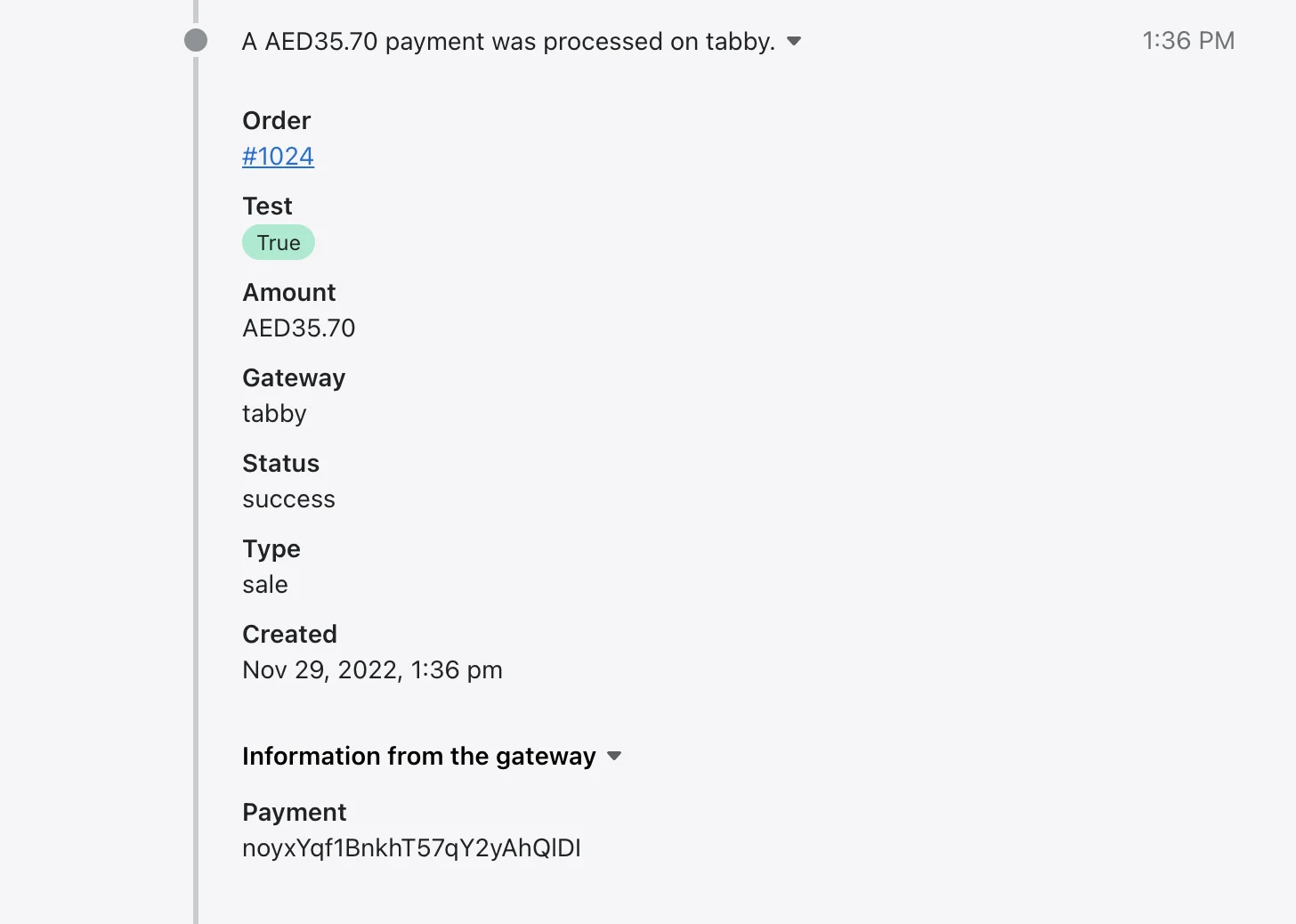
Order Editing
Please note that order details editing (as order lines, customer details, etc.) will be reflected in Shopify Dashboard only and will not updated for the payment on Tabby Merchant Dashboard, Customer Portal and Settlements.Order Lines
Shopify doesn’t share order data via the Payment App and Shopify does not share any order line data for non-product order lines, e.g. VAT/taxes, discounts, surcharges, tip, etc. Tabby orders will have necessary Order Lines data after Webhook installation.Order Tagging
Tabby Payment App cannot currently set tags on a Shopify order. You can use the Shopify Flow app (free and available on all Shopify plans) which can set order tags within a flow for Tabby orders.Payment Method Presentation
The Tabby payment method name is provided with English and Arabic translations out of the box. To reorder or hide payment methods in Shopify checkout, use Shopify’s checkout customizations powered by Payment Customization Functions — either via a Functions-powered app from the Shopify App Store, or via Checkout Blocks (Shopify Plus). The legacy checkout scripts (Script Editor) stopped executing on June 30, 2026 and can no longer be used for payment method customization. Customizations of the Tabby payment method presentation (logo, footer text) are currently supported only for Shopify Plus merchants. If you implement your own custom snippet, notify your Tabby account manager so we can keep your integration in sync with upcoming changes.Domain Filtering
Payment App uses a different hosted payment page URL:checkout.tabby.ai (UAE) or checkout.tabby.sa (KSA).
Merchants that filter this domain in Google Analytics will need to update their GA configurations accordingly.
Market Limitation
Tabby Payment App accept orders only for the billing addresses in the markets of KSA and UAE. Customers for non-supported regions based on the order’s currency are shown an error message on page load that the Tabby order cannot be processed. We recommend limiting Tabby’s visibility at checkout to the countries where your store works with Tabby — has a signed contract and an active integration. You can hide Tabby for other countries using Shopify’s checkout customizations (available on all Shopify plans), so customers from non-supported regions don’t see the error message.Multi-Currency Processing and Currency Conversion
Tabby processes payments in the following currencies: SAR (SR) and AED (Dhs), which must correspond to the customer’s billing address. Tabby Payment App is compatible with all Shopify stores, regardless of their base currency. If the store’s base currency differs from the customer’s billing currency, currency conversion will be applied, and the converted amount will be displayed at Tabby checkout. Customer transactions and merchant settlements will be processed in the customer’s billing currency. Currency conversion is also applied between supported currencies if the store’s base currency differs from the customer’s billing currency. Please note that to enable conversion, the “Enable Multi-Currency Processing” option must be selected in the Tabby settings.Inventory Lock Limitation and Inventory Stock Check
When a customer places an order with an alternative payment integration, such as Tabby Payment App, Shopify redirects to the payment method but does not lock the order’s product inventory and thus stock inventory cannot be guaranteed. However, Tabby can check inventory immediately after payment is completed but before the order is created in Shopify. If an item goes out of stock during the payment process, the funds will be refunded to the customer, and the Shopify order will not be created. To enable this functionality, please turn on the Check Inventory Stock feature in Tabby settings in your Shopify admin panel. Note that this feature only works when the following settings are applied to your products in Shopify settings:- Inventory tracking is enabled
- Continue selling when out of stock setting is disabled
Additional Request of the Phone Number
Shopify may not share the customer’s phone number with payment integrations at checkout (for example, when email is required instead of phone). Tabby fetches the phone number via the Shopify Webhooks set up during the Installation Steps. If the webhooks are not set up, Tabby will ask the customer to enter the phone number again within our Hosted Payment Page.Checkout Error Limitation
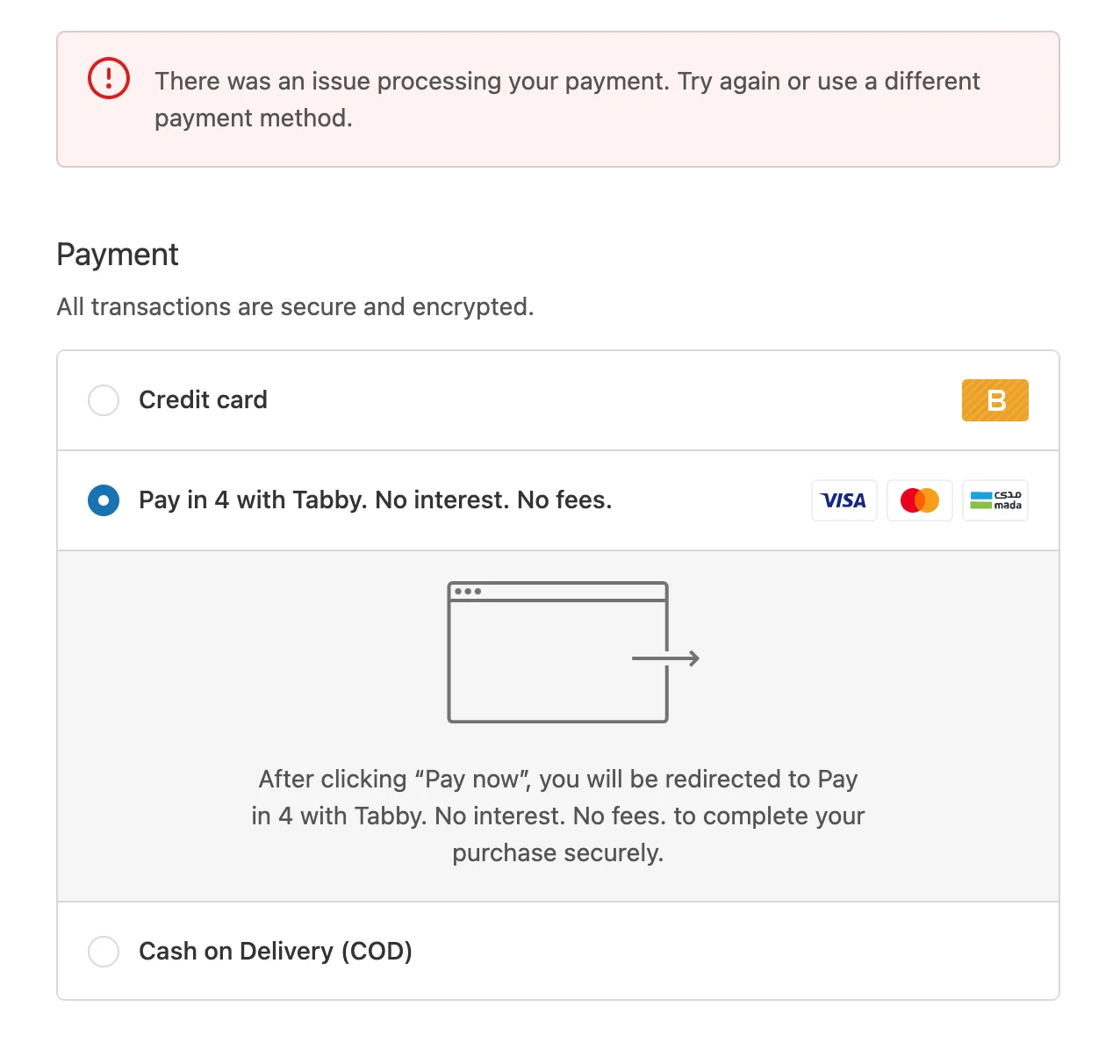
“There was an issue processing your payment. Try again or use a different payment method.” – this message can happen for tech/authorization reasons only. The most common reason (for new integrations) is that the API keys haven’t been populated fully. You can check the API credentials at merchant.tabby.ai (KSA: merchant.tabby.sa). Also, this message appears if country in shipping or billing address is different from country (countries) that your Tabby account is signed for. It can also appear if your integration hasn’t been set up on the Tabby side yet — in this case contact Tabby partner support at[email protected] / [email protected].
Redirection for Background Pre-Scoring Rejection
Tabby now redirects the customers to our internal rejection screens where we explain the reason and advise how to avoid this rejection if possible. Customers may see the general rejection explanation (can’t be avoided), too high cart total and too low cart total rejections (can be skipped by adjusting the cart total).The Amount Paid by the Customer to Tabby Doesn’t Match the Shopify Order Total
If customers update a related, but different Shopify session separately from the Shopify session used to place the Tabby order, the order totals between the Shopify and Tabby orders may not match, but the amount “Paid by customer” for the Shopify order should always match the Tabby order total. While not ideal, this is working as expected and designed. Care should be taken to only fulfill order line items paid for by the customer.Feedback and Support
If additional support is needed, email[email protected] / [email protected] (please include your Shopify store name and add your Account Manager in CC) for specific Tabby support.
Customer Tabby Support available at [email protected] / [email protected]
https://community.shopify.com is a good place for Shopify questions, support, and feedback, in addition to https://help.shopify.com/